WAV to Text: Convert Lossless Audio to Transcripts
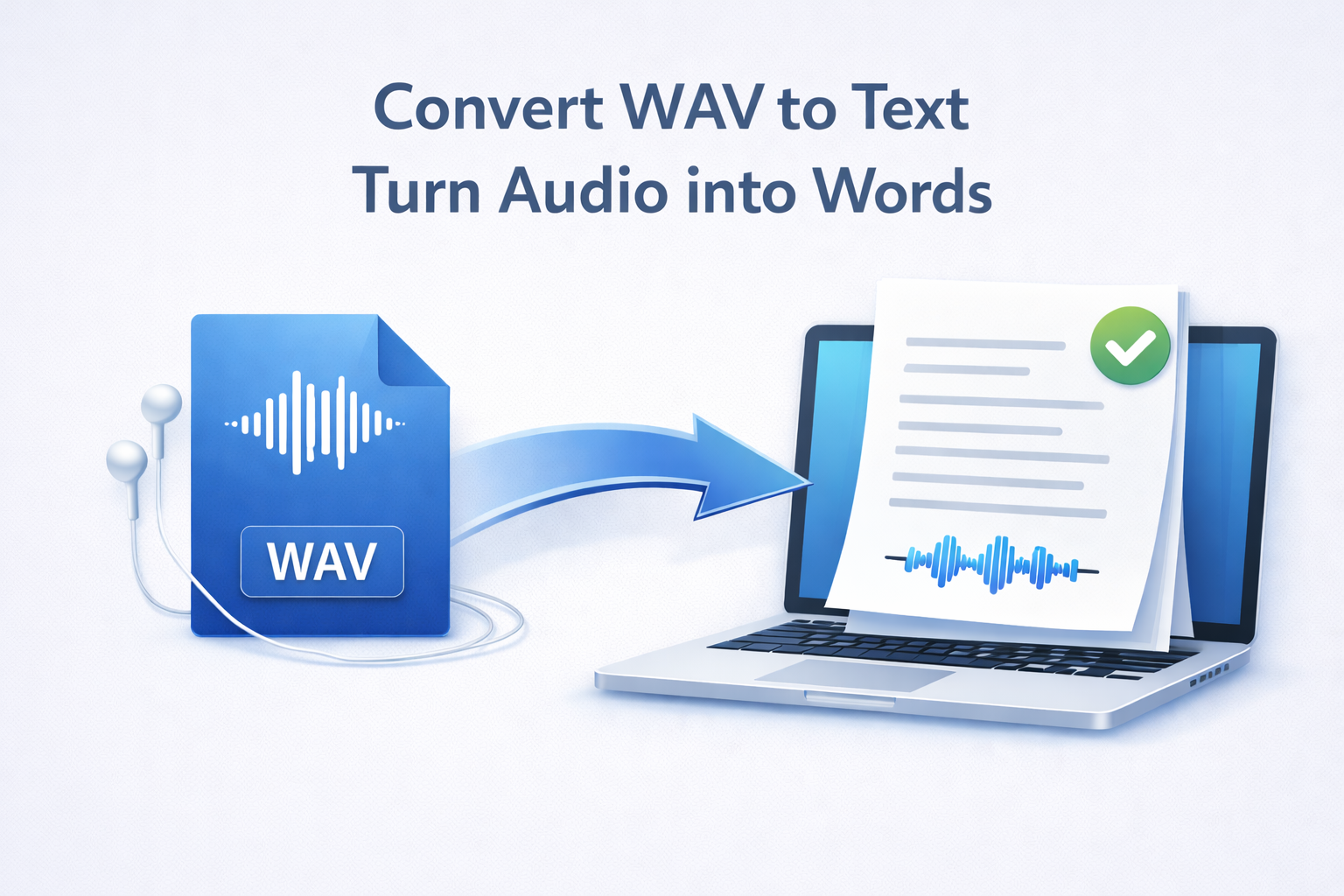
Need an accurate WAV to text converter? Because WAV files are uncompressed and high-quality, they are ideal for transcription. Use Transcribe.Audio to transcribe WAV files into clean, editable text instantly.
Quick answer: WAV to text in 3 steps
- Upload your WAV file to Transcribe.Audio.
- Click Transcribe to automatically convert the audio to text.
- Export the result as DOCX, PDF, SRT, VTT, or JSON.
Understanding the WAV Format
Before you convert WAV to text, it helps to understand why this format is the gold standard for audio. WAV (Waveform Audio File Format) is an uncompressed, lossless audio container.
Unlike MP3s, which delete data to save space, WAV files store audio in LPCM (Linear Pulse Code Modulation) format—exactly as it was recorded. This means:
- Highest Quality: No artifacts, “swishing,” or digital distortion.
- Better Accuracy: AI transcription tools perform best with clean, uncompressed audio.
- Larger Files: WAV files are significantly larger than MP3s (roughly 10MB per minute of CD-quality audio).
Why convert WAV to text?
Because WAV is the standard for professional recording, WAV transcription is essential for high-end workflows:
- Radio & Broadcast: Producers use WAV masters and need transcripts for logging and archives.
- Legal & Medical: High-fidelity recordings ensure that critical details aren’t lost in compression.
- Video Production: Editors often work with WAV audio tracks before the final render and need WAV to SRT files for subtitles.
- Archivists: converting historical audio archives into searchable text data.
If you are working with compressed files, we also support workflows like MP3 to text and M4A to text.
How to transcribe a WAV online
Our tool makes it simple to handle large, high-quality files. You don’t need expensive desktop software. Just visit the site, upload your WAV, and the AI will process the uncompressed audio for maximum accuracy.
If your WAV file is hosted on a server (e.g., a Dropbox public link or server directory), you can also use our Transcribe from Link feature to save time on uploading.
Export options
Once the WAV transcription is complete, you can download the text in several formats:
If you are mastering video content, using an SRT generator or VTT generator workflow with your high-quality WAV source ensures your captions are just as professional as your audio.
Transcribe + Translate Workflow
Need to understand a recording in a different language? You can combine transcription with translation in one seamless workflow.
Translation Steps
- Transcribe your WAV file first.
- Click the Translate button (powered by DeepL).
- Select your target language.
- Export the translated transcript or subtitles.
Accuracy tips for WAVs
Since WAV files are already lossless, accuracy depends almost entirely on the recording environment:
- Microphone Quality: Even a lossless format can’t fix a bad microphone. Use a dedicated condenser or dynamic mic if possible.
- Room Acoustics: Echo and reverb are the enemies of transcription. Record in a treated room or a closet full of clothes.
- Levels: Ensure the audio isn’t “clipping” (too loud) or too quiet. Consistent levels help the AI distinguish words clearly.
FAQ
Can I convert WAV to text for free?
Yes. You can Start free to test the WAV transcription accuracy with your own files.
Can I export SRT or VTT subtitles from WAV?
Yes. After transcription, simply choose SRT or VTT from the export menu. This turns your WAV to SRT instantly.
Can I translate the transcript?
Yes. We use DeepL for high-quality translations. Click Translate after your transcript is generated, then export the translated file.
Why are WAV files so big?
WAV files are uncompressed. They contain all the original audio data without stripping anything out, which results in large file sizes but perfect quality.
Does it work with other audio formats?
Yes. Besides WAV, we support standard compressed formats like MP3, M4A, and MP4 (video).
Is this for files I own?
Yes. You should only transcribe audio content that you own, have created, or have explicit permission to use.
Ready to convert your WAV to text?
Upload your file, generate a transcript, and export as PDF, DOCX, or SRT.
Start freeCompliance reminder: only transcribe content you own or have permission to use.