Transcribe from Link: Turn Any URL Into Text in Minutes
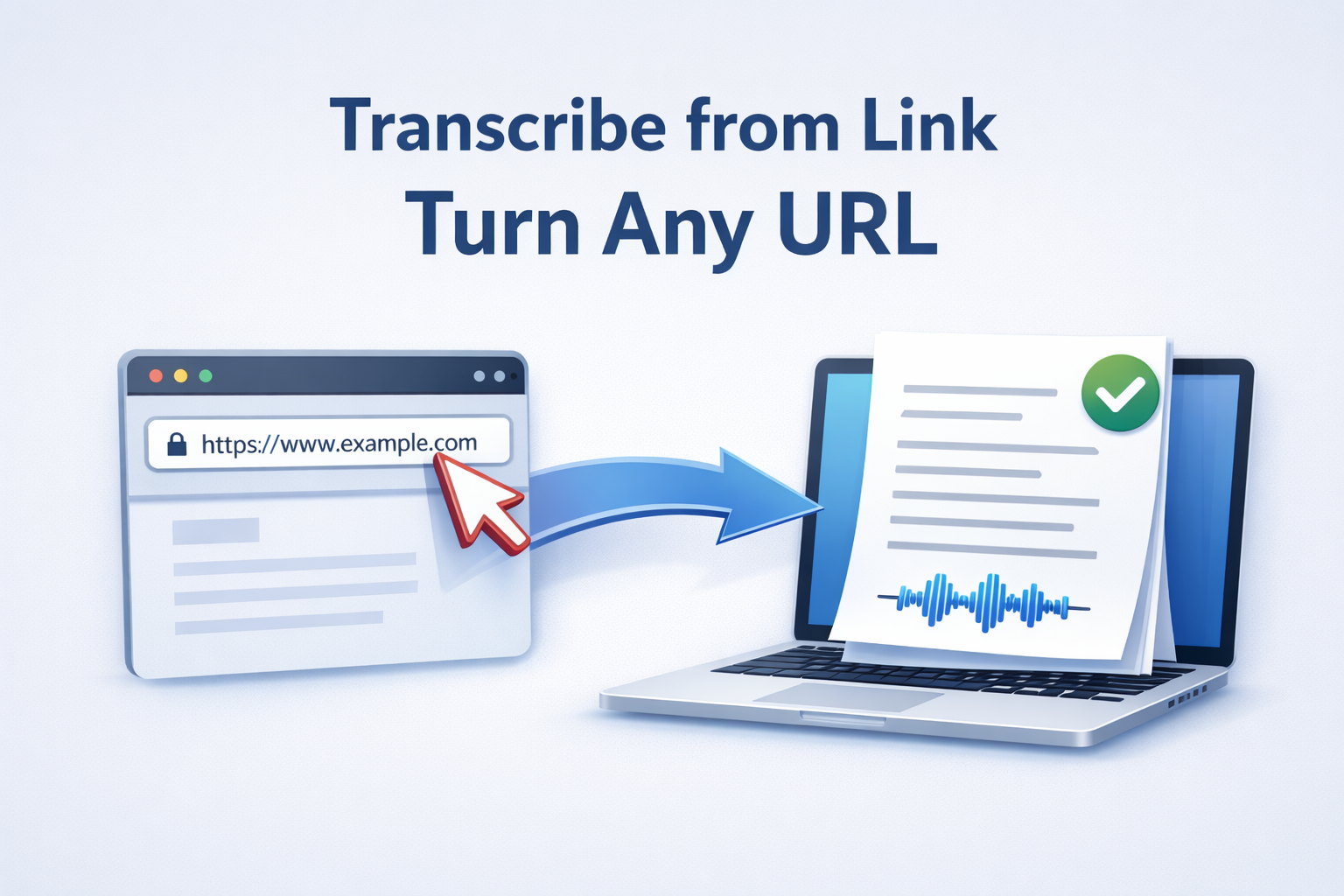
Need to transcribe from link quickly? With Transcribe from Link, you paste a URL (including sites like YouTube and TikTok) and convert the audio or video into clean, editable text—no downloads, no extra steps.
Quick answer: Transcribe from Link in 3 steps
- Paste your URL into Transcribe from Link (for example, a YouTube or TikTok link).
- Generate the transcript automatically.
- Export as PDF, DOCX, VTT, SRT, JSON, or TXT—or click Translate first (DeepL-powered) and export the translated result.
What is “Transcribe from Link”?
Transcribe from Link is a paste-and-go feature that turns a supported URL into text. Instead of downloading media, converting formats, or juggling tools, you can go straight from link to transcript in a simple workflow.
It’s ideal when you need to transcribe from URL for note-taking, captions, research, content repurposing, or documentation—especially when the audio lives inside a video platform.
What links are supported?
Transcribe.audio can transcribe from many websites by simply pasting a link. Common examples include:
- YouTube links
- TikTok links
- Other supported public media pages
If your goal is to transcribe audio from link or transcribe video from link, this approach keeps everything streamlined—just paste the URL and let the transcript generate.
Export formats
After transcription, you can export your transcript in the format that fits your workflow:
If you publish video content, exports like SRT and VTT are especially useful (think: SRT generator and VTT generator workflows). For platform-specific guides, you can also build future posts like YouTube transcript generator or TikTok transcript.
Transcribe + translate workflow
When you need multilingual output, the process is simple: first generate your transcript, then click Translate (DeepL-powered), and export the translated version.
Recommended flow
- Paste a link and create your transcript.
- Click Translate (DeepL-powered) to translate the transcript.
- Export the translated result as PDF, DOCX, VTT, SRT, JSON, or TXT.
Accuracy tips
Want cleaner transcripts and fewer edits? These practical tips help:
- Start with the best source link you can (clear speech beats noisy clips).
- Prefer videos with minimal background music and fewer overlapping speakers.
- Use the full-length version when possible—short, heavily edited clips can cut words.
- Scan for names and specialized terms and correct them before export.
- For subtitles, export SRT or VTT and do a quick timing/line-length review for readability.
Use cases
Journalists and researchers
Pull quotes, search key moments, and keep a clean written record—especially useful when working from multiple source links.
Creators and editors
Turn a transcript into captions, show notes, blog posts, and social snippets. Export SRT/VTT when you need subtitle files.
Marketing and content teams
Convert webinars and video content into written assets, then translate for international audiences before exporting.
Students and educators
Convert lecture links into searchable notes and shareable documents (PDF/DOCX) for studying and review.
FAQ
Can I transcribe from a YouTube link?
Yes. Paste the YouTube URL into Transcribe from Link to generate your transcript.
Can I transcribe from TikTok?
Yes. Paste a TikTok link and Transcribe.audio can generate a transcript from the video.
What’s the difference between “transcribe from link” and “transcribe from URL”?
They mean the same thing: you paste a URL and convert the audio/video into text (URL to text).
Can I export subtitles as SRT or VTT?
Yes. After transcription, export your transcript as SRT or VTT.
What export formats are available?
You can export as PDF, DOCX, VTT, SRT, JSON, or TXT.
How do translations work?
After transcription, click Translate (DeepL-powered). Then export the translated result.
Can I export the translated transcript too?
Yes—after translating, you can export the translated output as PDF, DOCX, VTT, SRT, JSON, or TXT.
Is it okay to transcribe any link I find online?
Only transcribe content you own or have permission to use.
Ready to transcribe a link into text?
Paste a URL, generate a transcript, and export in the format you need—PDF, DOCX, SRT, VTT, JSON, or TXT.
Start freeCompliance reminder: only transcribe content you own or have permission to use.