MP3 to Text: Convert Audio to Transcripts & Subtitles
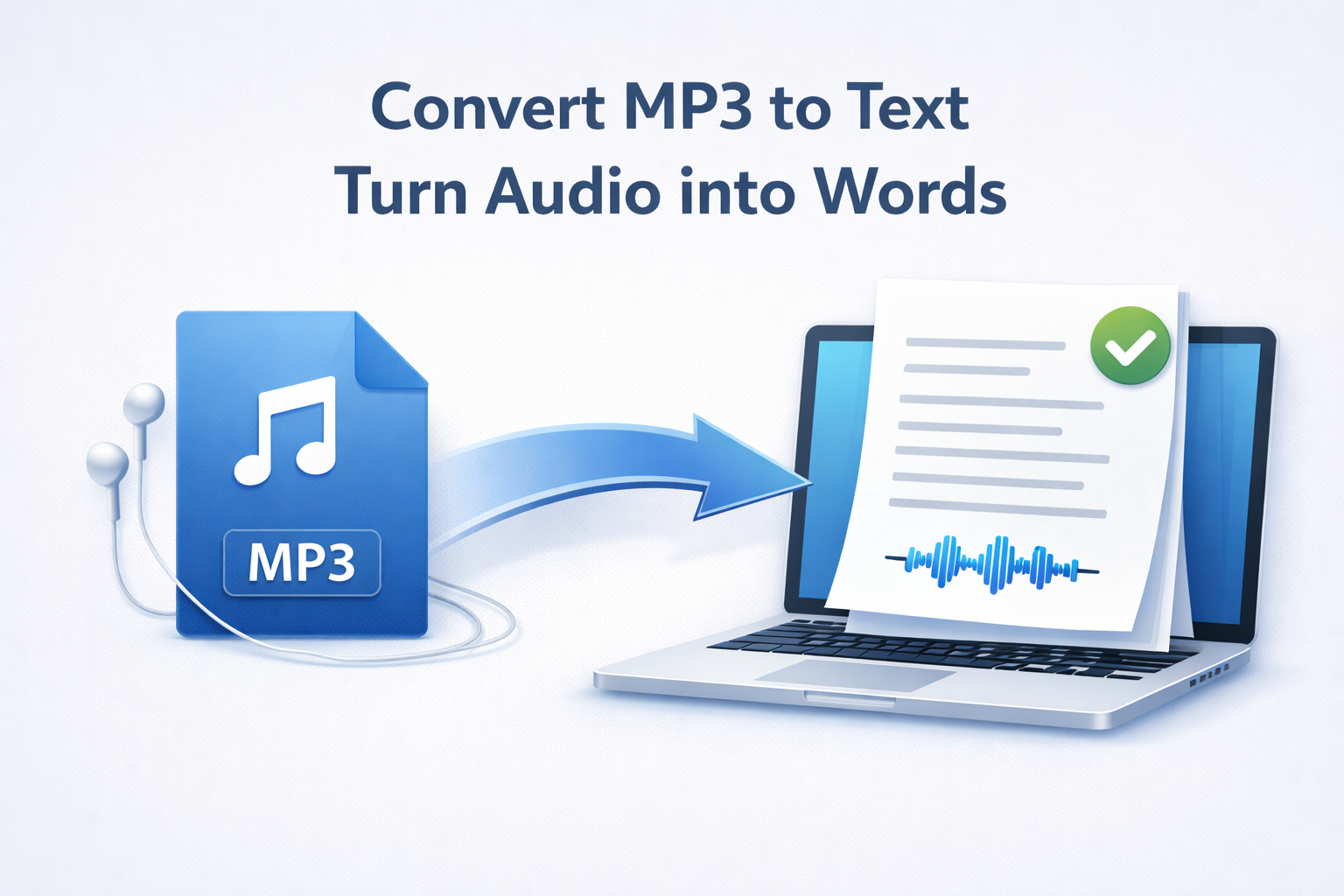
Looking for a reliable MP3 to text converter? Whether you have a recording of an interview, a podcast episode, or a voice memo, you can transcribe mp3 files instantly—no manual typing required.
Quick answer: MP3 to text in 3 steps
- Upload your MP3 to Transcribe.Audio (or paste a link if hosted online).
- Click Transcribe to automatically convert the audio to text.
- Export the result as DOCX, PDF, SRT, VTT, or JSON.
Understanding the MP3 Format
Before you convert mp3 to text, it helps to understand what an MP3 actually is. MP3 (MPEG-1 Audio Layer III) is a “lossy” compression format. To keep file sizes small, it discards audio data that the human ear often ignores.
While great for music storage, low-bitrate MP3s can sometimes sound “swishy” or “underwater,” which can affect mp3 transcription accuracy.
Why convert MP3 to text?
Turning mp3 to transcript form transforms “dark data” (audio you can’t search) into a valuable asset.
- Journalists: Transcribe interviews to find quotes instantly without re-listening to hours of audio.
- Podcasters: Create show notes, blog posts, and mp3 to subtitles (SRT/VTT) for social media clips.
- Researchers: Convert focus group recordings into searchable text data.
- Accessibility: Provide text alternatives for audio-only content.
If your audio is in a different format, we also support workflows like WAV to text and M4A to text.
How to transcribe an MP3 online
Our tool simplifies the process. You don’t need to install heavy software. Just visit the site, upload your file, and let the AI handle the rest.
If your MP3 is already hosted online (for example, a podcast episode direct link), you can also use our Transcribe from Link feature to skip the download/upload cycle entirely.
Export options
Once the mp3 transcription is complete, you can download the text in several formats:
If you are creating video content from your audio, using an SRT generator or VTT generator workflow is essential for social media engagement.
Transcribe + Translate Workflow
Need to understand an audio file in a different language? You can combine transcription with translation in one seamless workflow.
Translation Steps
- Transcribe your MP3 file first.
- Click the Translate button (powered by DeepL).
- Select your target language.
- Export the translated transcript or subtitles.
Accuracy tips for MP3s
To ensure the highest accuracy when you convert mp3 to text:
- Minimize background noise: Record in a quiet room.
- Avoid “crosstalk”: Ensure speakers take turns talking.
- Use higher bitrates: 192kbps MP3s transcribe better than 64kbps files.
- Speaker proximity: Keep the microphone close to the speaker.
FAQ
Can I convert MP3 to text for free?
Yes. You can Start free to test the MP3 transcription quality with your own files.
Can I export SRT or VTT subtitles?
Yes. After transcription, simply choose SRT or VTT from the export menu. This turns your mp3 to srt instantly.
Can I translate the transcript and download it?
Yes. We use DeepL for high-quality translations. Click Translate after your transcript is generated, then export the translated file.
How accurate is MP3 transcription?
Accuracy is very high for clear audio. However, because MP3 is a compressed format, low-quality files with heavy compression artifacts may require minor editing.
Does it work with other audio formats?
Yes. Besides MP3, we support many formats including WAV, M4A, and MP4 (video).
Is this for files I own?
Yes. You should only transcribe audio content that you own, have created, or have explicit permission to use.
Ready to convert your MP3 to text?
Upload your file, generate a transcript, and export as PDF, DOCX, or SRT.
Start freeCompliance reminder: only transcribe content you own or have permission to use.